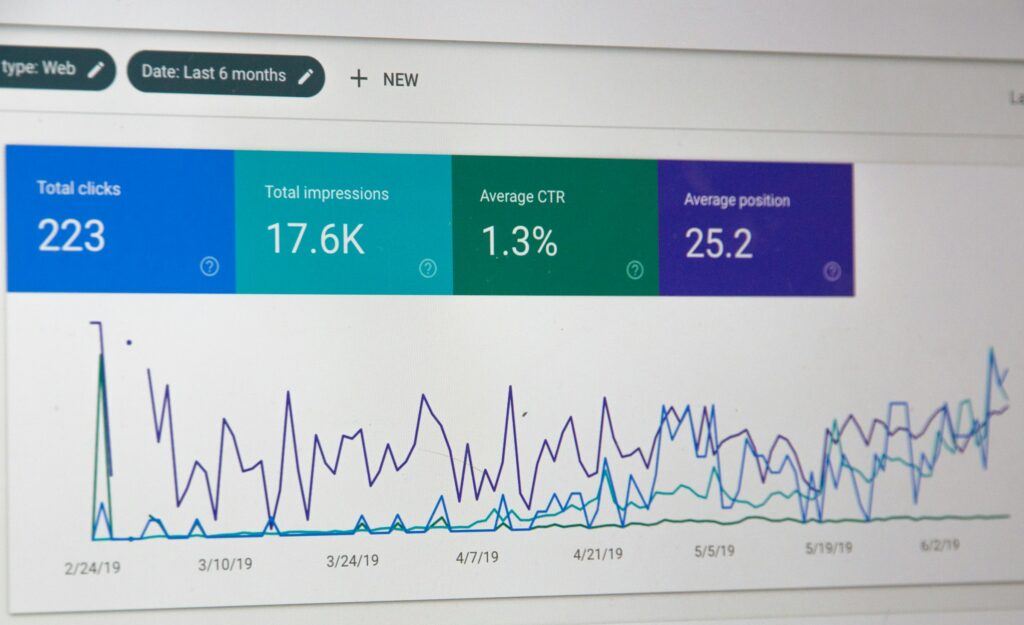
Google Analytics can be a game-changer for anyone running affiliate campaigns.
Tracking clicks, conversions, and understanding your visitors’ adventure can help you spot what’s working and what isn’t.
Things can get overwhelming if you don’t know where to start, especially if you’re new to analytics or just getting your affiliate site off the ground. I’ll walk you through exactly how to use Google Analytics to get better results from your affiliate campaigns, step by step.
Why Google Analytics Matters for Affiliate Campaigns
I’ve learned that knowing where your affiliate traffic comes from and what visitors do once they land on your site makes it so much easier to boost your ROI. Google Analytics (especially GA4) helps answer key questions:
Example –
- Are people clicking my links? Which pages work best?
- Are my affiliate efforts leading to actual sales or leads?
- By setting things up right, you’ll have a clear view of how your affiliate links perform and what should get your focus.
Affiliate marketing is a popular way to monetize websites, blogs, or even newsletters. Tracking your links and conversions helps maximize your earnings by showing you what to double down on and what to tweak or drop. Even if you’re not a data nerd, the proper setup puts actionable insights at your fingertips.
The Setup: Making Analytics Actually Work for You
Setting up Google Analytics for affiliate campaigns is not as daunting as it may seem. While there are a few steps involved, each one plays a crucial role in transforming plain website statistics into actionable affiliate insights. Here’s what I focus on in my own setup, and I’ll add a few extra details to help you really make use of this powerful tool.

Step 1: Define Your Affiliate Campaign Goals
The first step sounds obvious, but it’s a crucial one that often gets overlooked. I always ask: What counts as “success” for this campaign? Is it raw clicks to affiliate links, actual completed sales on a partner site, total revenue, or maybe qualified leads? Knowing your primary goal helps you determine what to track and which key performance indicators (KPIs) are most important.
Some KPIs I like to set for affiliate campaigns include:
- Clickthrough rates (CTR) on affiliate links
- Conversions (sales, signups, form completions)
- Revenue per click (EPC)
- Return on ad spend (ROAS) for paid campaigns
- Quality or engagement from affiliate traffic (bounce rate, time on site)
- Repeat visitor rate (are people coming back after using your affiliate recommendations?)
- Depth of interaction with your site or content before clicking a link
Defining your targets keeps your analytics setup focused and actionable. Consider mapping out what each goal means for your bottom line so you have a direct connection between numbers and strategy.
Step 2: Set Up Google Analytics (GA4 is Recommended)
If you haven’t switched to GA4 yet, now’s the time. GA4 brings more flexibility with event tracking, which is crucial for affiliate campaigns. Here’s what to check:
- Install GA4 sitewide (every page should be covered)
- Verify your data streams and make sure the Measurement ID is working
- Check real-time tracking; the dashboard should reflect your test visits instantly
- Set up Enhanced Measurement features in GA4 to automatically gather data about outbound clicks and file downloads
I always run a few test visits and clicks to ensure that events and conversions appear immediately in the analytics interface. If something’s off, double-check your code or plugin settings. Remember to look over both desktop and mobile views to catch issues early.
Step 3: Connect Google Analytics With Google Tag Manager (Optional, But Powerful)
Google Tag Manager (GTM) is a free tool that enables you to update tracking tags on your website without requiring code modifications. I find it highly convenient for firing custom affiliate tracking events, and it’s beneficial if you test numerous new affiliate offers or frequently update your site.
How I use GTM for affiliate sites:
- Create tags for tracking specific affiliate link clicks as events
- Trigger tags when visitors click certain outbound links or buttons
- Test, pause, or adjust tags without calling a developer or editing theme files
- Use variables in GTM to pass extra data (like link text or product category) into your event reports
- Set up triggers that only fire on affiliate pages or specific sections to keep things organized
While GTM isn’t required, it saves time if you’re looking to expand your campaigns or test different approaches. If you’re new to GTM, Google’s starter guide walks you through the basics. Many affiliate marketers stick to plugins, but learning GTM gives you more flexibility in the long run.
Step 4: Create Custom Events for Affiliate Link Clicks
To measure every click on your affiliate links, you’ll want to track those as events in GA4. Outbound click tracking reveals which offers and placements actually capture attention.
I usually do this by:
- Tagging affiliate links with a unique class or attribute (like rel=”sponsored” or a custom data attribute)
- Using GTM or a plugin to listen for clicks on those links
- Setting up a GA4 event with parameters like link_url, link_text, affiliate_network, or campaign_category
- Testing the setup with multiple affiliates and offers to ensure you are collecting all necessary details for accurate reporting
Once this is working, you’ll see every click on those affiliate links appear in GA4, complete with the extra information you set. Be sure to double-check your data stream to make sure nothing slips through the cracks.
Step 5: Tag Your Affiliate Links With UTM Parameters
UTMs (Urchin Tracking Module codes) are bits of text you add to your URLs to tell Analytics more about where a click came from. When someone clicks an affiliate link with UTM tags, that information appears in your Analytics reports, providing you with more detailed insights into your affiliate campaigns.
For affiliate campaigns, I use these UTMs by default:
- utm_source: The affiliate partner or network name
- utm_medium: Usually affiliate or referral
- utm_campaign: Describes the campaign, offer, or product promoted
- Custom parameters like utm_term to track things like content themes or review types
This makes it much easier to segment and compare results in Analytics. If you ever need to troubleshoot attribution, properly tagged URLs can really save you.
Step 6: Configure Conversion Tracking
You’d like to know when affiliate visitors actually convert, meaning they make a purchase, submit a lead, or take some other valuable action. In GA4, you can mark any event as a conversion with a couple of clicks. For complex setups, please work closely with your merchant partners or affiliate networks to make sure that conversion data is pushed back to your Analytics setup whenever possible.
For simple setups (like lead generation), I mark a thank-you page view or a completed form as the conversion event. For direct-to-merchant sales, some affiliate networks offer a postback URL or APIs that let you send conversion data back to your analytics account. Integrating this isn’t always easy, but it’s absolutely worth the effort if you want to measure accurate ROI. Don’t forget to document your conversion tracking steps for reference and troubleshooting.
Step 7: Build Custom Audiences for Affiliate Traffic
GA4 enables you to segment your traffic for more targeted remarketing and in-depth analysis. I make custom audiences for users who have:
- Clicked at least one affiliate link
- Viewed high-converting product reviews
- Spent time on comparison or “best of” pages
- Interacted with coupon codes or special offer banners
- Browsed multiple pages within your affiliate section
These segments are instrumental if you want to run Google Ads retargeting or track the activities of your most valuable users. You can also dig into how affiliate-focused visitors behave compared to casual readers. Advanced users might map out cross-device behavior or see if specific segments respond better to new offers.
Step 8: Set Up Funnel Explorations
Funnel visualizations in GA4 help me identify where visitors drop off on their journey from the landing page to the affiliate link click and successful conversion. In GA4, this is done with Explorations. Choose the Funnel option and map the steps:
- Landing page (e.g., product review)
- Affiliate link click (your custom event)
- Conversion (sale, lead, or thank you page)
If you notice a high number of visitors dropping out before the affiliate click, consider refining your calls to action, copy, or page layout to encourage people to progress through the funnel. Consider testing variations using A/B testing tools and monitor your funnel results after every change.
Step 9: Use the Traffic Acquisition Report
The Traffic Acquisition report is one of my go-to reports in Google Analytics 4 (GA4). Here, I can break down which affiliate links, offers, blog posts, or sources drive traffic and how engaged that traffic really is. Look at:
- Session sources (using UTMs)
- Engagement rate and time on page
- Click events compared by source or campaign
- How do different channels (email, social, organic) stack up in conversions
This shows you which partners, placements, or promo strategies bring visitors that actually click and convert, so you’re not just measuring empty traffic. Don’t forget to schedule regular reviews of this report to catch trends over time.
Step 10: Analyze Affiliate Link Performance With Explorations
GA4’s Explorations feature goes far beyond the standard reports. I use it to zoom in on outbound affiliate link click events and compare:
- Performance by page (which posts get the most clicks?)
- Different types of reviews or comparison tables
- Visitor device (desktop versus mobile clicks)
- Traffic source (organic, email, social, etc.)
- Time of day and day of week for top-performing clicks
This is where you can spot trends. Your mobile visitors click more, or a particular blog series always gets above-average conversions. Over time, this analysis helps you spot which content themes or layouts consistently get better results.
Step 11: Create Dashboards for Ongoing Monitoring
Having a dashboard to monitor your metrics is really handy. I enjoy building affiliate campaign dashboards in either Google Analytics 4’s Explorations area or Looker Studio (formerly known as Data Studio). The main things I include are:
- Affiliate link clickthrough rate (CTR)
- Earnings per click (EPC)
- Conversion rate (if available from merchants)
- Total revenue from each partner, category, or campaign
- Top converting content pieces and landing pages
- Real-time alerts for sudden spikes or drops so I can react quickly
This gives you an at-a-glance check on what’s going on. You can get creative by combining GA4 data with network earnings, if your tech setup allows it. I recommend updating and customizing your dashboard as your campaigns expand.
Step 12: Optimize and Test Continuously
Once you’re tracking what matters, the real fun starts. I run regular A/B tests or mix things up by changing:
- Call-to-action buttons (“Shop Now” vs. “See Deal”)
- Link placement (top, middle, or bottom of the article)
- Affiliate link style (button, text, image, or comparison table)
- Review layouts or content hooks
- The images or icons used next to affiliate links to see if visuals drive more clicks
Using the Google Analytics reports and dashboards you built, you’ll spot what’s driving better clicks and conversions and keep building on those wins. Make testing and adjusting an ongoing process, and document your results as you go along for future reference.
Common Pitfalls and How to Avoid Them
Even with proper tracking in place, it’s easy to encounter some classic affiliate analytics issues. Here are some things that have tripped me up over the years, plus extra tips to avoid these headaches:
- Not using UTMs consistently, which makes it hard to tell what traffic came from where. Use a UTM builder tool to avoid errors.
- Missing affiliate link clicks due to default event tracking not being set up correctly. Test your links on all device types and browsers.
- Overlooking mobile or tablet experiences. Sometimes, links break or aren’t visible on smaller screens, so it’s best to test on multiple devices.
- Ignoring “dark social” traffic such as messenger shares or untagged links. Supplement analytics with tools that estimate dark social visits or use share buttons that add UTM tags.
- Not integrating affiliate network data, which results in a partial view of performance. Reach out to your network rep if you need help setting up these integrations.
Using a checklist and testing with real traffic or friends helps ensure that you’re capturing every click and conversion accurately. If your affiliate program offers API access or postback support, bringing that into Analytics provides even richer data.
Advanced Tips for Getting More From Your Tracking
I’ve picked up some advanced tricks that go a step further for affiliate tracking:
1. Use Google Signals or Google Ads Data: If you run ads or have a larger list, enabling Google Signals gets you cross-device tracking. This is excellent for understanding multi-step affiliate adventures.
2. Combine With Affiliate Network Dashboards: Export conversion or revenue data from networks and line it up with your Google Analytics stats. Some affiliate plugins offer integrations to make this easier, saving you time and effort.
3. Track Coupon Use or Promotional Codes: Set up events for coupon reveals or downloads. This shows not just clicks, but who’s seriously considering a purchase or researching a deal.
4. Set Up Custom Alerts: GA4 allows you to get notified by email or push notification if link clicks, sessions, or conversions suddenly spike or drop. This helps you catch technical problems or capitalize on viral content quickly.
5. Map Out Content Clusters: Group your articles, reviews, and offers into relevant themes to see if specific clusters perform better with affiliate links, then focus your content strategy accordingly.

Frequently Asked Questions About Google Analytics for Affiliate Campaigns
Question: How do I track conversions if the sale happens off my site?
Answer: Some affiliate networks provide postback URLs or APIs that can fire a conversion “event” in your Google Analytics when a sale is credited. If available, these integrations are usually found in your affiliate network dashboard. If not, focus on measuring quality clicks and engaged traffic as your main success metrics. You can also work with your merchant partners to pass conversion data back where possible.
Question: Does Google Analytics slow down my website?
Answer: The standard Google Analytics tag is lightweight and has no noticeable impact on load speeds. If you use numerous scripts or complex plugins, monitor your site’s performance closely. In most cases, analytics tracking is efficient, but always check after installing new tools.
Question: Can I use Google Analytics for affiliate tracking if I’m not very technical?
Answer: Yes! Many WordPress plugins automatically set up affiliate link click tracking and UTM tagging for you, no code required. Plugins like MonsterInsights, Pretty Links, and ThirstyAffiliates are worth checking out if you want an easier experience. Look for tutorials online to set up, even if you’re new to these tools.
Question: Why aren’t all my affiliate link clicks showing up in my reports?
Answer: Make sure outbound link tracking is firing events correctly on all versions of your site (mobile and desktop) and that you aren’t accidentally blocking Analytics scripts (with ad blockers or privacy plugins). Testing in an Incognito window or a different browser can help spot issues. If problems persist, ask in affiliate forums for troubleshooting tips specific to your setup.
Real World Scenarios: Examples of Analytics Boosting Affiliate Campaigns
- Blogger running a review site: After tracking which product reviews got the highest affiliate CTR, I moved those articles to the homepage grid and saw earnings jump the next month. Simple placement changes can have a significant impact when backed by analytics data.
- Email marketer promoting affiliate deals: Tagging each campaign link with different UTMs revealed that morning sends led to more site visits and clicks than afternoon blasts, so I shifted my schedule for better results.
- Coupon website owner: Using custom tracking events for “Show Coupon” clicks, I figured out which offers needed better placement and which pages were causing visitors to bounce. Analytics data enable me to optimize the layout for more conversions.
- Niche site owner testing content formats: Tracking affiliate clicks by content type revealed that detailed comparison tables brought more clicks than standard lists, leading to a shift in content style and higher commissions overall.
- Multi-channel marketer: By adding extra UTM parameters to social media campaigns, it became clear which platforms brought engaged visitors who actually clicked affiliate links, allowing budget and energy to be focused on the highest converting channels.
If you’re running any kind of affiliate campaign, dialing in your analytics setup is worth the time. Over the long term, minor improvements from better insights add up to bigger commissions, often without the need for more traffic or content production.
Tracking, testing, and refining bring steady progress, keeping you one step ahead with your affiliate campaigns. Early setup might seem like a chore, but once the groundwork is set, the data you’ll have is incredibly valuable for keeping your affiliate efforts on the right track.